Controllers — EuroScope
The EuroScope plugin is the fullest XPGuard controller client. On your ground radar it:
- Draws stop bars, Takeoff Hold Lights (THL) and Runway Entrance Lights (REL).
- Lets you switch stop bars with a click.
- Picks and lights lead-on lights when you clear a bar, and switches lead-off rows with your active runways.
- Is the only client with Follow the Greens taxi guidance.
You drive the lights. The pilots see them live in their sims over VATSIM.
What EuroScope does that vatSys doesn't
- THL and stop bars work in both controller plugins.
- REL, lead-on controls and Follow the Greens are EuroScope-only.
- To route a taxi with greens, use EuroScope.
- See the vatSys page for that plugin.
Upgrading from 1.4.0? The right-click changed
Right-click on a bar now opens the bar's menu (lead-on lines, All ON / All OFF).
Shift+click is the permanent toggle — it pins a bar (marked *) so
Auto bar leaves it alone.
In 1.4.0 the right-click was the permanent toggle.
Installation
- Download the plugin — open
xpguard.net/get/euroscopein your browser. - Extract the zip.
- In EuroScope:
Plugins → Load, and selectXPGuardES.dll. - Required: select XPGuard in the Plugins dialog. Move Ground Radar Display into Allowed to draw on types — as in the figure below.

Do not skip step 3
Without Ground Radar Display in Allowed to draw on types, the stop bars, THL and REL will not draw at all.
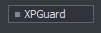
After OK, a draggable XPGuard button with a status dot appears on your radar:
Link your token
The token proves it is really you switching the lights. You set it once — from 1.5.0 the browser does the work:
- Click the XPGuard button → Set token. Your browser opens the XPGuard sign-in page.
- Sign in with VATSIM and approve the device.
- The token arrives by itself and is saved with your settings. Done.
While the link is pending, the menu row reads Waiting for browser sign-in with a short
code and a cancel. If it fails or times out, start it again — or paste a token (below).
Any action you attempt with no token starts this flow on its own.
Fallback — paste a token. No browser on the scope PC? On your dashboard, open
Controller token → Generate token → Copy (figure below), then type
.xpg token <your token> in EuroScope. This is also the vatSys path — the same pasted
token works in both plugins. Keep it private.
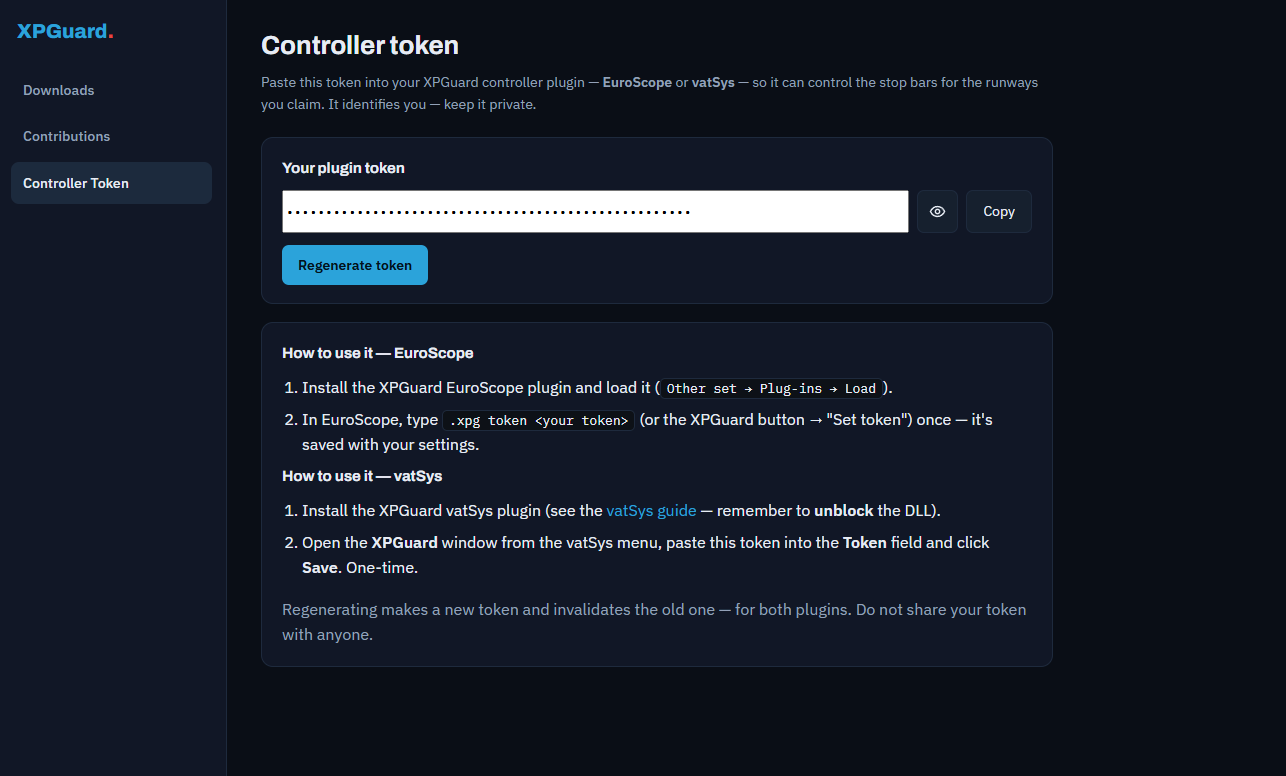
Your dashboard lists every Linked device. Remove one there and only that plugin signs out — the others keep working.
Warning
Until the token is set, the button's dot stays gray and you cannot control any bars.
The XPGuard button & menu
- The button is draggable — move it anywhere on the radar.
- Click it to open the menu.
- Drifted off screen?
.xpg recenterbrings it back to its default corner.
Status dot:
| Color | Meaning |
|---|---|
| Gray | No token set — you cannot control anything |
| Green | Token set and the server is reachable |
| Amber | Token set, but the server is currently unreachable |
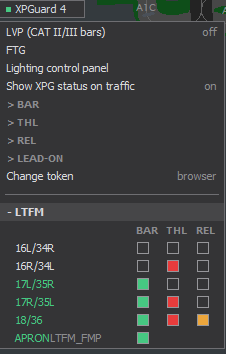
The number on the button (XPGuard 3) is how many runways you currently hold a
BAR claim on. That count includes claims at airports EuroScope no longer lists as active.
Below the switches, each active airport is a collapsible + ICAO header. Expand it. Every
runway row carries up to three checkboxes: BAR · THL · REL.
Claims you still hold at airports that left the active list appear under a NOT ACTIVE - still held block — click a box there to release them.
Settings
Click the XPGuard button to open the menu. The per-light-family settings live under four collapsible sections — BAR, THL, REL and LEAD-ON. The cross-cutting switches and the token stay at the top level.
Top-level switches
| Row | What it does |
|---|---|
LVP (CAT II/III bars) |
Low Visibility Procedures — on/off. See LVP & per-bar states. Always starts off. |
FTG |
Open the Follow the Greens traffic panel. |
Lighting control panel |
Opens XPGuard's browser lighting panel. It uses your website sign-in, not the token. (Under construction) |
Show XPG status on traffic |
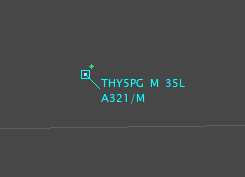
A small green dot on the target of every pilot running XPGuard, so you can see who is actually seeing your controlled lights. Drawn on the radar tag (figure below). |
BAR section
| Row | Values |
|---|---|
Auto bar |
Off by default. When on, a bar you clear with a left-click re-lights itself after a delay (default 45 s). A bar pinned with Shift+click (permanent, marked *) is never re-armed. |
Bar style |
Cycle the stop-bar drawing — see below. |
Bar size |
Cycle 1–5. Scales the bars in every style; 3 is the default look. |
Show CAT II/III only in LVP |
Declutter: hide unlit CAT II/III bars from your scope while LVP is off. Display-only — the bars keep their state and pilots always see them. |
Apron bars |
normal ↔ dim. Dim shrinks and fades every APRON bar so runway holds stand out; a lit apron bar stays clearly red. Tune with .xpg apron. |
Hide No Entry bars |
Declutter: hide no-entry bars from your scope. Display-only — pilots always see them. |
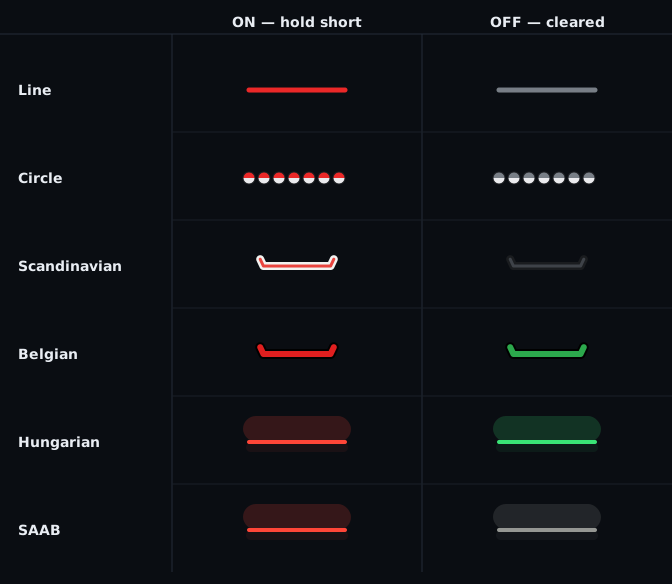
Bar style cycles through six drawings, in this order:
| Style | |
|---|---|
line |
A plain straight bar |
circle |
Round fixtures (the default) |
Scandinavian |
|
Belgian |
|
Hungarian |
|
SAAB |
The Hungarian drawing with a pale-grey OFF — the Saab A-SMGCS look |
THL section
| Row | Default | Range | What it does |
|---|---|---|---|
THL horizon |
12 s |
3–30 s | How many seconds ahead THL anticipates a crosser. Click the row to type a value. |
THL sound |
off | — | One short alert when a runway's THL lights for an anticipated incursion. |
REL section
The defaults follow the published RWSL behavior. You rarely need to move them.
| Row | Default | Range | What it does |
|---|---|---|---|
Anticipated separation |
3.0 s |
1–8 s | How many seconds before the traffic reaches an entrance the row releases. Larger releases earlier. |
Departure altitude filter (>) |
300 ft |
100–600 ft | ft AGL above which a departure is gone and stops holding rows. |
Departure velocity filter (>) |
8 kt |
0–30 kt | The speed at which a controller-declared departure counts as rolling. Set 0 (any speed) and a declared departure holds its entrances the moment it is lined up, stationary or not. |
Arrival time window |
30 s |
10–120 s | How many seconds from the threshold an approach starts lighting the entrances. |
Show REL indicators |
on | — | Draw the rows on your scope. Off hides them; the lights still run. |
LEAD-ON section
The controls for lead-on lights.
| Row | Default | What it does |
|---|---|---|
Show lead-on indicators |
main radar |
Where the candidate lines appear: off / main radar / mini window. |
Automatic on clearance |
on | Clearing a bar lets XPGuard pick and light the lead-on line by itself. Off: you pick — see picking by hand. |
Lead-off |
Active Rwy |
Click to cycle Active Rwy / On / Off. See Lead-off. |
Indicator duration |
5 s |
How long the indicator stays up after a pick. Click to type 0–600; 0 = until the bar is red again. |
Close all mini windows |
— | Shown only while mini windows are open (N open). Closes them all and puts dragged ones back in their default places. |
Set / change token
The bottom row reads Set token until a token is saved, then Change token. Click it to
start the browser sign-in. While a link is pending the row itself
becomes Waiting for browser sign-in — <code> - cancel.
EuroScope commands (.xpg)
Type these in the EuroScope command line.
| Command | Effect |
|---|---|
.xpg |
Status report — active airports, connection, claimed runways. |
.xpg token <token> |
Set your API token by hand. |
.xpg auto [on\|off] |
Toggle (or set) Auto bar. |
.xpg autotime <10-60> |
The Auto bar re-light delay, in seconds. |
.xpg apron [dim\|normal] [<off%> [<on%>]] |
Apron declutter and its fade strengths (10–100%). Bare .xpg apron toggles. |
.xpg minzoom <1-500> |
Hide the bars when the radar is wider than this many NM. |
.xpg thl airport <ICAO,..> |
Monitor these airports for THL instead of your active ones. off restores them. Bare .xpg thl reports the setting. It does not arm anything — that stays the per-runway checkbox. |
.xpg logthl |
Toggle the per-tick THL log (THL.log). |
.xpg logrel |
Toggle the per-tick REL log (REL.log). |
.xpg loglead |
Toggle the per-tick lead-on log (LEAD.log). |
.xpg ftg <callsign> [ICAO] [cancel] |
Request or cancel FTG without opening the badge. Leave the ICAO out and XPGuard works it out from position. It only sends the request — the pilot still accepts and you still draw the route. |
.xpg releaseall |
Release every claim at once. |
.xpg recenter |
Bring the XPGuard button back on screen. |
.xpg reload |
Re-read settings.json, re-scan active airports. |
.xpg log |
Toggle diagnostic logging to xpguard.log. |
.xpg help |
List these commands. |
The settings.json file
- Lives in the plugin folder, next to
XPGuardES.dll. - You normally never open it — the menu and
.xpgcommands write it. - To hand-edit: change it, then run
.xpg reload. - Keep
tokenprivate.
Most keys map directly to a menu row (autoMode + autoMode_time, barStyle, barSize,
apronDim/apronDimOff/apronDimOn, hideNoentry, cat23OnlyInLvp, minZoom,
thlSound, thlHorizon, thlAirports, showXpgTags,
relCantic/relAirborne/relDepSpd/relArrWin/relShow,
leadShow/leadAuto/leadOffMode/leadMiniSec).
A few FTG appearance keys are hand-edited only, then .xpg reload. Colours are
[r,g,b], 0–255:
| Key | Default | Meaning |
|---|---|---|
ftgRouteWidth |
2 |
Route line thickness (1–6). |
ftgColRoute |
[52,106,68] |
The lit corridor greens (the selected aircraft draws a brighter shade). |
ftgColDraft |
[110,175,235] |
Draft badge dot and dashed draft route. |
ftgColActive |
[60,200,120] |
The active badge dot and ring. |
ftgColHandoff |
[230,130,245] |
An aircraft handed to you, awaiting Accept/Reject. |
The rolling-window values (ftgRollingWindow, ftgAhead, ftgBehind) are set from the
FTG panel's top row and save themselves — no .xpg reload needed.
Claiming — who can claim what
The server decides what your position may claim. It reads your facility/rating as VATSIM reports it, and uses your callsign to check the airport for own-airport positions. The same rules apply in EuroScope and vatSys.
| Position | May claim |
|---|---|
Delivery / Ground / Tower (_DEL / _GND / _TWR) |
Your own airport only — your callsign must name your airport. LTAC_TWR claims LTAC, and US positions using FAA IDs work too (SLC_TWR claims KSLC). |
Approach / Departure / Center / FSS (_APP / _DEP / _CTR / _FSS) |
Top-down: any airport you cover. (A _TMU flow position is own-airport only.) |
In all cases:
- You must be signed in with VATSIM Connect. An email/password account cannot claim anything, whatever its token.
- The callsign you claim with must be the one you are connected under. The claim is accepted at once, then dropped if the feed never shows you under it.
- A runway is held by one controller at a time. EuroScope names the holder and refuses the click — its box fills muted-red.
- Switching callsign releases what you held under the old one.
When claims drop:
- A clean disconnect or unloading the plugin releases claims immediately.
- After a crash the server expires them ~90 s after the last heartbeat.
- The server also re-checks claims against the live VATSIM feed:
- Never appearing within ~5 min releases a claim as unverified. New claims are then blocked ~10 min.
- A verified claim's controller leaving the feed for ~5 min expires it. New claims are then blocked ~3 min.
- A live position change that makes you ineligible drops the claim immediately.
- Reconnecting under the same callsign clears any block at once.
APRON — shared apron / ground bars
- Bars on the apron, or a taxiway belonging to no runway, are grouped under an APRON claim. Contributors tag them in the editor.
- APRON is the one shared claim. Any eligible position — Ground, Tower, top-down — may hold it at the same time. Its box is never filled muted-red when others hold it.
- Who switches which bar is coordinated verbally. Everyone sees the live state, and the system picks no owner.
- APRON has no THL. Its row appears once an airport has apron bars.
Stop bars
- Open the menu. With a green dot and your position online, XPGuard auto-detects your
airports. Click a
+ ICAOheader to expand its runways. - Claim a runway — tick its BAR checkbox. A runway held by someone else shows their callsign, its box filled muted-red, and refuses the click.
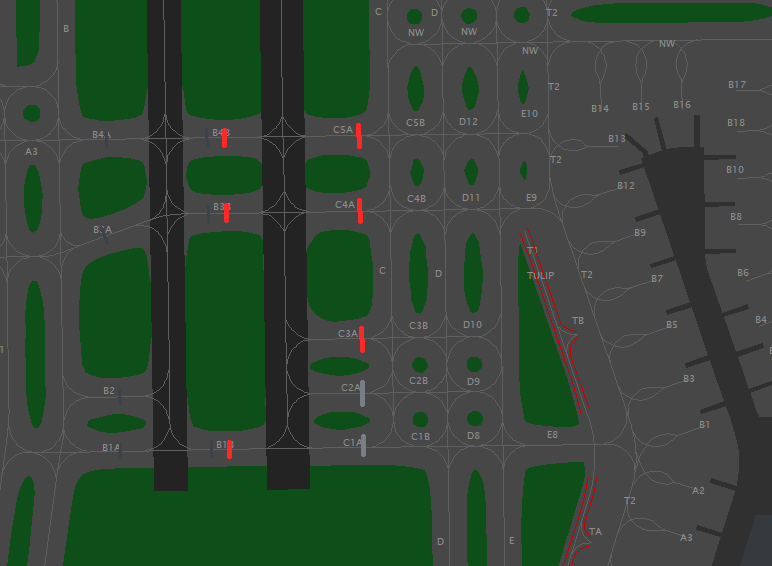
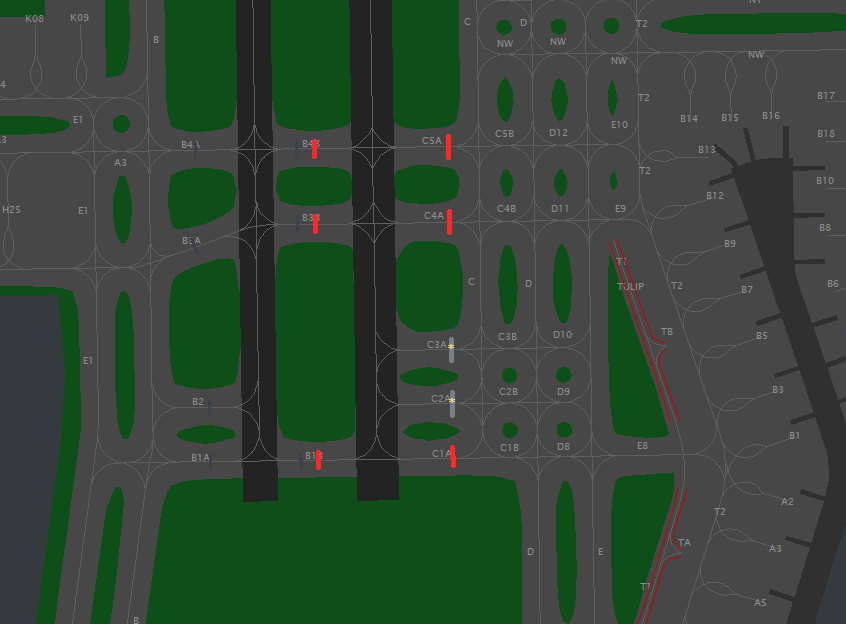
- Left-click a stop bar on the ground radar to set it red or clear it. Only on runways you hold (first figure below).
Shift+clickto set it permanently (marked*) soAuto barleaves it alone. Left-click again to release the pin (second figure below).- Right-click any bar to open its bar menu — the lead-on lines beyond it, All ON, All OFF.
- Release — un-tick BAR. Disconnecting from VATSIM or unloading the plugin releases every claim immediately.
At a bar with lead-on lines, a left-click may not clear the bar. With indicators on and Automatic on clearance off, the line pick comes up instead. Pick the line to clear. See picking by hand.
Clicks apply instantly
A claim or a toggle shows on your scope the moment you click; the server confirms behind the scenes. If the server refuses (someone else holds the runway), the click reverts with a message.
Proxy EuroScopes?
Since 1.5.0, claims are tracked per EuroScope instance. Claim, toggle and release from whichever instance you like — un-ticking releases everywhere, and closing one scope drops only the claims made in that scope. Both instances need 1.5.0 or newer; on older builds, release from the scope that claimed.
Lead-on lights
Green or green+amber centerline lights beyond a stop bar. When you clear the bar, they lead the aircraft from the holding point onto or across the runway. Pilots see them in the sim; you control which line lights. Concept: the lights explained.
Watch it done — video tutorial
A bar can carry multiple lines. Someone has to choose which one lights. Either XPGuard chooses automatically, or you do.
Automatic (default)
With Automatic on clearance on, clear a bar with a left-click as usual. XPGuard reads the traffic at the bar, picks the line for the aircraft, and lights it. The picked line shows where Show lead-on indicators says — on the main radar or in a mini window — for the indicator duration.
Whenever a clearance lights nothing — no traffic at the bar, two aircraft, no clear
candidate — the pick is handed to you, in both modes. The candidates come up where the
indicator setting says. On the main radar the bar's menu opens for you; in mini-window
mode the window pops up; with indicators off, the bar menu opens by itself. Pick a
line and it lights. Re-arming the bar (setting it red again) closes the question.
Picking by hand
Turn Automatic on clearance off and every choice is yours. A left-click on a lit bar that carries lines does not clear it. The candidates come up and the bar stays red until you pick — picking the line is the clearance: one click lights the line and clears the bar.
With indicators off, a left-click clears the bar as usual and the bar menu opens for
your pick.
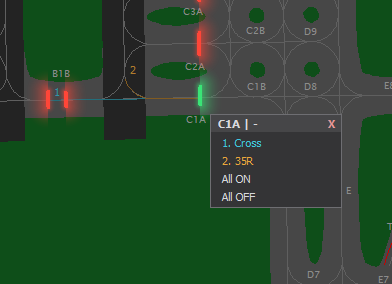
The main-radar indicator
Numbered coloured lines drawn at the bar — only while that bar is asking for a pick or showing an answer, never permanently. The lit line draws solid and thick; the rest are thin and dim. The numbers sit at the far end of each line, where they diverge. The drawn lines are information only — the pick happens in the menu, which opens for you.
The mini window
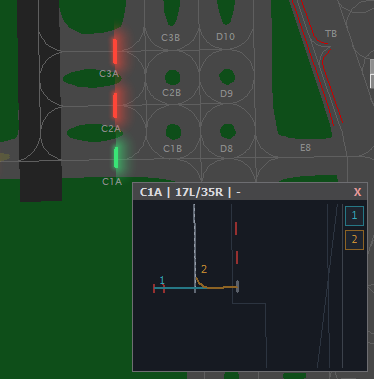
At a busy field the candidate lines are a few pixels on a zoomed-out scope. Set
Show lead-on indicators to mini window and each asking or answering bar gets a small
panel beside it instead (at most 4 at once):
- Titled
<bar> | <runway> | <callsign>— the bar, its runway, and who the question is about. - Draws the real pavement from your sector file, rotated the way your scope is.
- Drag it by the title bar;
Xcloses it.Close all mini windowsin the LEAD-ON section closes every one and resets dragged positions. - Click a line in the window to pick it. That lights the line and clears the bar too.
- Or click the numbered button on the window's edge — same pick, easier target.
The bar menu (right-click)
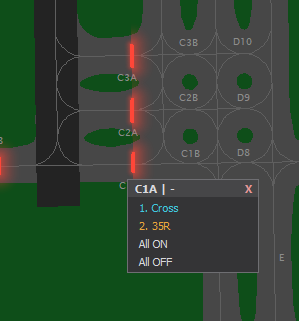
Right-click any stop bar to open its menu — on every bar, lines or not.
- One row per line:
1. <runway>(orCrossfor a crossing), plus the mapper's note. A*marks a lit line. - Each row is a toggle and the menu stays open — light two entrances off one clearance, or click a line again to darken it.
- All ON lights every line and clears the bar.
- All OFF is the override — it darkens every line at this bar, including one an aircraft is still crossing.
- Lighting any line clears the bar.
- A bar with no lines says
(no lead-on lines at this bar). A runway you have not claimed says(you have not claimed this runway). - There is no Permanent row —
Shift+clickon the bar is that.
What runs on its own
- A lit line follows the crossing aircraft and goes dark behind it by itself.
- A lit red bar standing across a line caps how far it burns — the drawn line dims past it.
- An out-of-service (INOP) line never lights, whatever picks it.
The sensor model — and more than one aircraft
Real lead-on segments are switched by surface sensors as the aircraft passes them. There are no sensors on VATSIM, so XPGuard models them from your ground radar:
- The line is divided into blocks. The first block ends where the row enters the runway, so the lights behind the aircraft go dark as it lines up — not before.
- A target counts as being on the line only inside a corridor around it, moving the line's way at taxi speed — an aircraft vacating the other way, or one on the parallel taxiway, never trips it.
- Whatever the blocks say, lights further than ~30 m behind the rearmost aircraft on the row are dark — so the next departure holding at the re-armed bar never reads a full lit lead-on as its own clearance.
The multi-aircraft flow follows from one rule — once an aircraft is past the bar, the line belongs to that transit, not to the bar:
- You clear the bar; the line lights; the aircraft starts to cross.
- You re-arm the bar for the next aircraft (left-click, or
Auto bardoes it after its delay). The crosser's line stays lit and keeps following it — re-arming darkens a line only when nothing ever crossed. - The next clearance is its own question: a fresh pick for the next aircraft, while the first one's lights keep trailing it to the runway.
- The line goes out when every transit completes — lined up on the runway, or off the far end of a crossing line. Backstops cover the radar's blind spots: a clearance nobody takes releases the row after ~30 s, a transit that stops advancing after ~120 s.
Lead-off
Lead-off lights are the runway-exit strings — they lead a landing aircraft off the runway. Each lead-off row serves one landing runway.
The Lead-off row in the LEAD-ON section cycles through three modes. Every mode is asserted — the plugin switches the rows on the runways you hold to match it, and re-checks every few seconds.
| Mode | What it does |
|---|---|
Active Rwy (default) |
Rows whose runway is active for arrival in EuroScope's active-airport window stay on; every other row on your runways is switched off. Change the active runways and the rows follow within a few seconds. |
On |
Every lead-off row on your runways is on. |
Off |
Every lead-off row on your runways is off. |
Crossings (rows with no landing runway) are left alone in Active Rwy and follow On / Off.
Rows on runways you do not hold are never touched.
A lead-off switch lasts only while you hold the runway: release the claim (or disconnect) and the server puts those rows back to the taxiway's own lighting for everyone.
Upgrading from 1.5.1
The old Lead-off follows active runways switch is gone. Both of its values land on
Active Rwy, so automatic switching is on after the upgrade even if you had it off.
No-entry bars
Some airports publish a no-entry bar — a stop bar the server pins red for everyone (a red-lit no-entry marking, not a controllable bar).
- It is drawn a darker red than a live stop bar, in every bar style.
- It is never clickable — a click on it does nothing, for anyone, on any runway.
- A no-entry bar can be regime-scoped: pinned red only in LVP, or only out of it. In the other regime it is an ordinary, controllable bar.
- Declutter with the
Hide No Entry barstoggle in the BAR section. It hides only the always-red ones; a regime-scoped bar stays visible while its regime runs. Display-only — pilots always see them.
Out-of-service (INOP) bars
A moderator can declare a bar out of service. That is not "off" — the equipment is not there, and it cannot light.
- It draws as a dashed orange line in every bar style.
- Its tooltip reads
OUT OF SERVICE (INOP) - it will not light. - A click is refused with a chat message:
<name> @ <icao>: out of service (INOP) - it cannot be lit. - INOP outranks everything — no-entry red, and every way of lighting a lead-on line.
- A lead-on line declared INOP is not dark for the pilot: nobody switches it, so it burns as ordinary centerline — the same as a line at a runway nobody has claimed.
LVP & per-bar Default states
Larger airports have a second, farther-back holding position on many entries — the CAT II/III holding position. It protects the ILS critical area in low visibility.
Every stop bar carries a Default / LVP state. It is set in the map editor and shown in the radar tooltip:
| State | Behavior |
|---|---|
| ON | A regular bar. Lit whenever its runway is claimed, in LVP or out. |
| Non-LVP only (CAT I) | Lit normally, dark while LVP is on. |
| LVP only (CAT II/III) | Dark normally, lit while LVP is on. |
| OFF | Dark in both. Switch it by hand when you need it. |
As in real procedures, only the holding position in use is lit:
- LVP off — claiming a runway lights its ON and Non-LVP only bars. LVP only stays dark.
- LVP on (menu →
LVP (CAT II/III bars)) — on the runways you hold, every LVP only bar lights and every Non-LVP only bar goes out. So an aircraft cleared past the CAT II/III bar never faces a lit bar inside the critical area. ON bars are untouched.
Note
- LVP always starts off when the plugin loads.
- Claiming another runway while LVP is on applies its states automatically.
- Manual control always wins. You can left-click any bar on your runways in either
mode;
Auto barre-arms only to what the current regime calls for. - LVP is local to your position — TWR can switch it on while GND stays out.
Takeoff Hold Lights (THL)
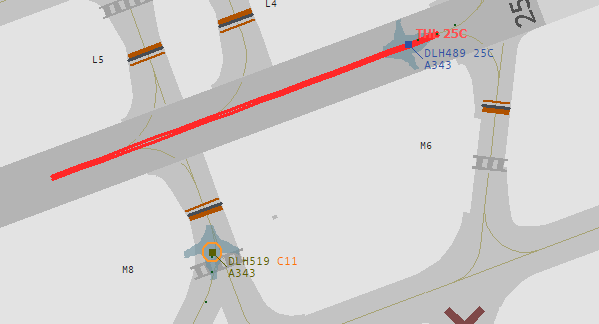
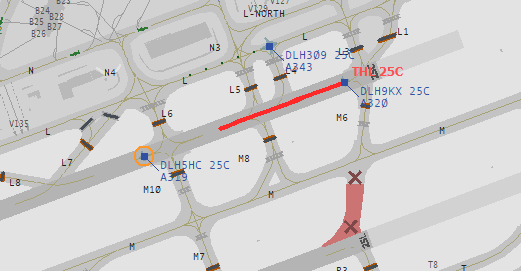
XPGuard's automatic runway-conflict warning. A double row of red lights runs down the runway for an aircraft lined up to depart, whenever the runway ahead is occupied or about to be crossed. You do not switch it bar by bar. You enable it on a runway, and the monitor drives the lights.
Turn it on
- Expand the airport's
+ ICAOheader. - Tick THL on a runway (the right-hand box). It fills red. Untick to stop.
That is all. When an aircraft lines up and the runway ahead is unsafe, the lights turn red in the sim. They go dark when it clears.
- THL is armed per runway and independently of its BAR claim.
- Arming THL is a claim: one controller per runway. A runway armed by someone else shows as taken and refuses the click. It follows the same eligibility, heartbeat and expiry rules as a BAR claim — see who can claim what.
- When the claim dies, the server forces that runway's THL off.
On the radar, an armed runway shows the red double row and labels the protected aircraft
THL <runway>.
Deep dive
- THL runs on anticipation, not only on the present.
- It predicts each target's path from its motion, so a crossing aircraft lights the runway before it arrives. The lights clear the moment the conflict is predicted to resolve.
- It is fed entirely from your EuroScope ground radar, so it needs an active controller.
- The conflict logic follows the FAA RWSL model — MIT Lincoln Laboratory ATC-206.
Safety
THL never replaces a verbal clearance. It is an advisory aid; the lights going dark is not a takeoff clearance. Keep clearing takeoffs verbally.
Runway Entrance Lights (REL)
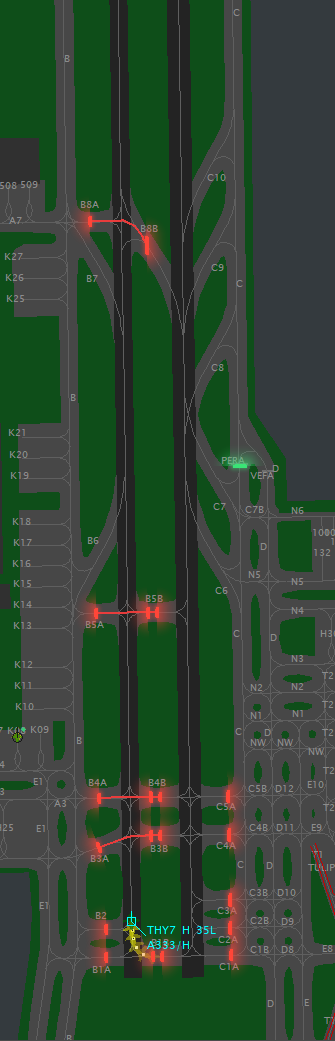
The third automatic light. Where THL protects an aircraft lined up, REL protects every entrance to the runway. It draws a red row from each holding position to the runway edge, lit while traffic makes that entrance unsafe. You never switch a row. You claim REL on a runway, and the monitor drives every row on it.
Turn it on
- Expand the airport's
+ ICAOheader. - Each runway row carries three boxes: BAR · THL · REL. Tick REL.
The rows light and clear themselves from live traffic.
- REL is claimed per runway and independently of BAR and THL.
- It is a claim: one controller per runway, following the same eligibility, heartbeat and expiry rules — see who can claim what.
- A runway with no published REL geometry can be ticked, but nothing will run there. The server refuses the empty claim, and the plugin warns you in chat.
- When the claim dies, the server forces that runway's rows dark.
Tune the timing in the menu's REL section (see Settings). On the scope,
a lit row draws along its published line. Prefer them out of the picture? Turn
Show REL indicators off.
vatSys
REL is EuroScope-only, like Follow the Greens.
Further reading — RWSL in the real world
XPGuard's THL and REL follow the Runway Status Lights (RWSL) system. RWSL is an ICAO-recognised runway-safety concept operated in the real world by EUROCONTROL and the FAA:
Follow the Greens
Light a pilot's cleared taxi route with green centerline lights in their sim. You draw the route on the radar and confirm it. The greens then follow the aircraft and hold short of red bars by themselves.
You need two things first:
- A published taxi network at that airport. Where there is none, the aircraft's FTG menu says
FTG unavailable - no network. - The pilot running XPGuard and accepting your request.
Before you start — you must hold a claim
- You must hold a claim at that airport: BAR on any runway or on APRON, or THL on a runway. Any one is enough.
- Without it, every FTG action is refused.
- Lose the claim mid-session and stop/go, handoff and window changes are blocked too.
Start a session
- Find the aircraft. Every XPGuard pilot on the ground carries a green XPG badge by its tag. The ring shows FTG state: green = active, amber = requested. Click the badge, or the callsign in the FTG panel.
- Request FTG and wait. Amber
Pending → Accepted. A decline flashes redREJECTED. -
Draw the route. The taxi network's nodes become clickable:
- Route to destination — click one destination node; XPGuard finds the shortest route.
- Route node by node — click each via in order.
Ctrl+clicka via to remove it.
It draws as a green preview. Nothing has reached the pilot yet. 4. Optional:
Shift+clickthe route line to cap where the greens end — a stand mid-segment, for example. 5. Confirm route to send it.
Once sent:
- The greens light at the pilot, starting at the aircraft.
- They hold short of any lit red stop bar ahead, and continue on their own when it goes off.
- By default a moving window keeps a short stretch lit — 30 m behind, 250 m ahead — sliding
along as the aircraft taxis. Click
Rolling Window: OFFon the FTG panel to light the whole route instead, or clickBehind/Aheadto change the distances.
Stop bars along the route
A route through a lit bar facing the aircraft stops there automatically. Switch the bar off and the greens continue — and back again if you re-light it.
The action menu on a live session
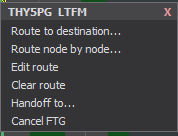
Click the badge (or the callsign) to open the per-aircraft menu:
- Route to destination… / Route node by node… — draw again. Confirming replaces the old route.
- Edit route — reopens the current route as a preview. Drawn node by node? It comes
back with its vias. Anything else opens in segment editing: click segments to add or drop
them.
Shift+clickthe line to set or remove the greens-end cap. - Clear route — darkens the greens but keeps the session, so you can redraw without asking the pilot again.
- Handoff to… / Cancel handoff / Cancel FTG — see Handoff & adopt.
While a preview is open the menu offers Confirm route (or Save draft route if the pilot has not accepted), Discard changes, and Cancel FTG.
Note
Nothing is sent until you Confirm — a drawn route is a local preview.
Draft a route before the pilot accepts
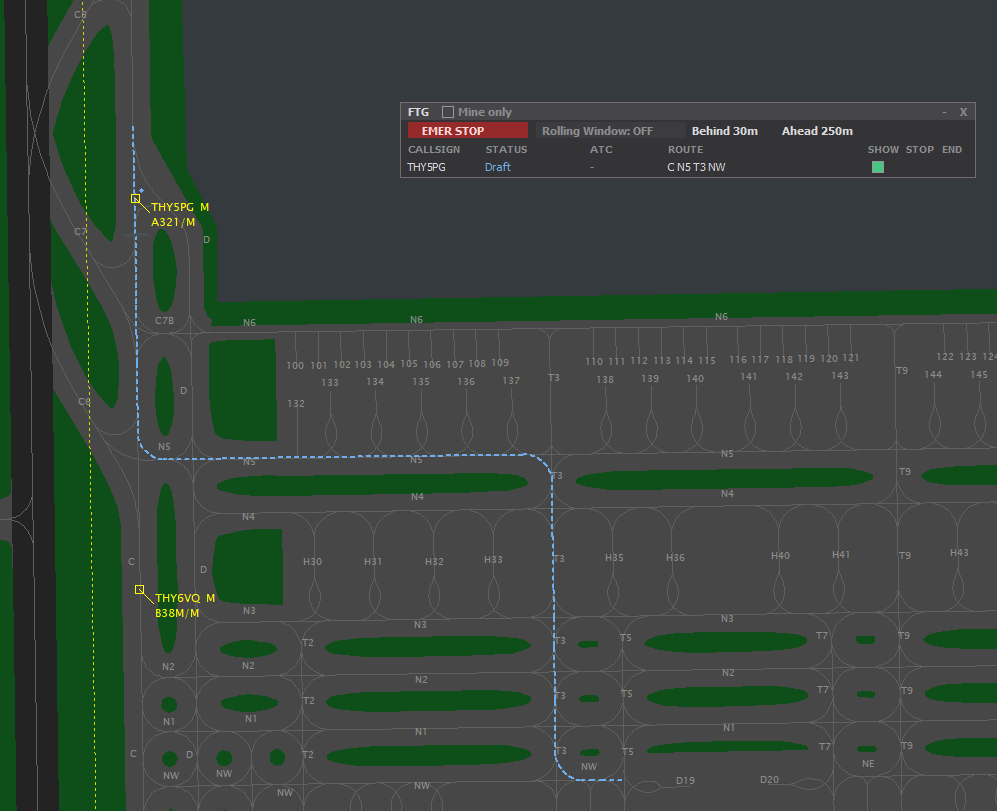
You can pre-stage a route and send it the moment they accept, so guidance starts instantly. A draft is held locally in EuroScope — the server only takes a route for a live session.
- Before they accept, the menu offers Route to destination… (draft) and Route node by node… (draft). Draw it the same way; finish with Save draft route.
- A parked draft draws dashed blue, the badge turns blue, and the FTG panel lists a blue Draft row. SHOW works on it.
- Manage it from the menu: Edit draft route or Clear draft route.
- When they accept, the menu gains Confirm draft route → send. One click and the greens light.
- If the taxi network was republished after you staged it, XPGuard asks you to redraw.
Taxiways the pilot's scenery doesn't have
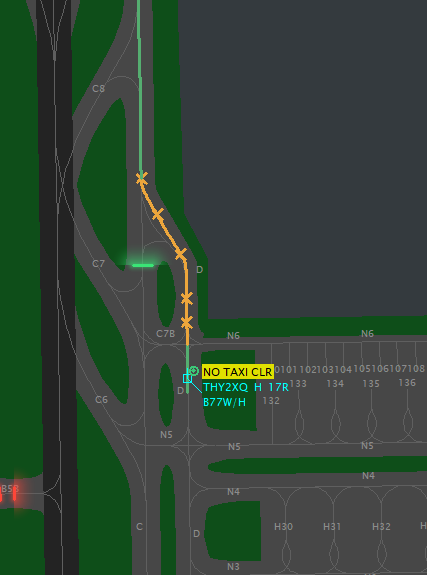
- Add-on airports do not always carry the same taxiways as the real world — some are missing entirely. Moderators mark those while mapping, so XPGuard knows at runtime what each pilot has.
- A stretch the pilot's scenery lacks draws amber with ✗ marks.
- It is a warning, not a block. You can still send it — but there may be no pavement there. Usually: reroute. The marks show on a draft too, so you can check before you send.
The FTG panel
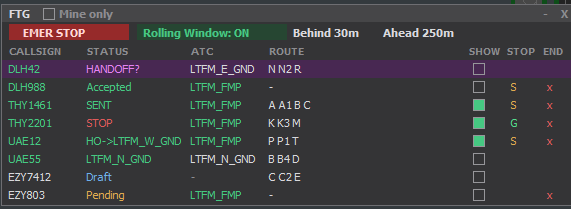
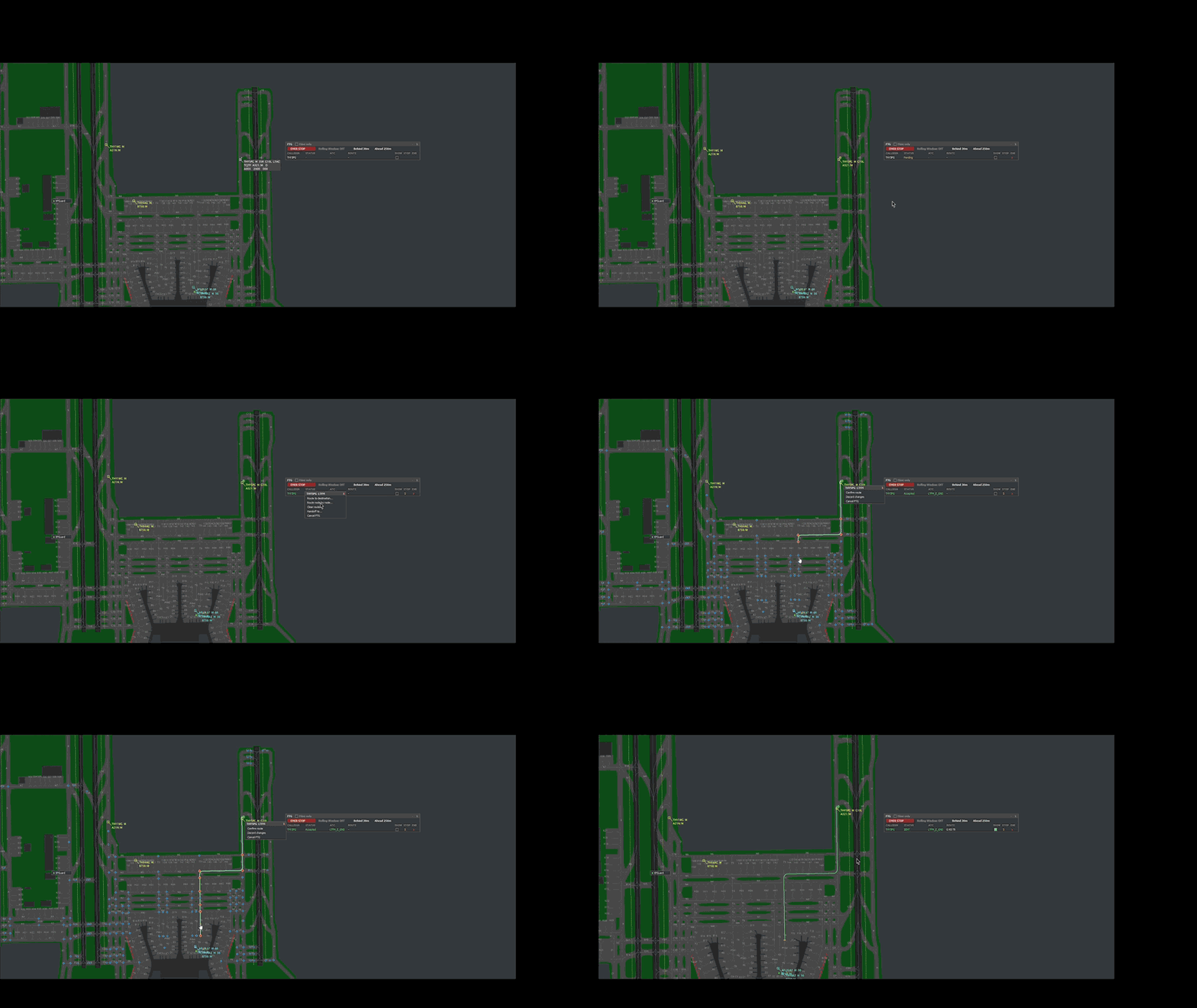
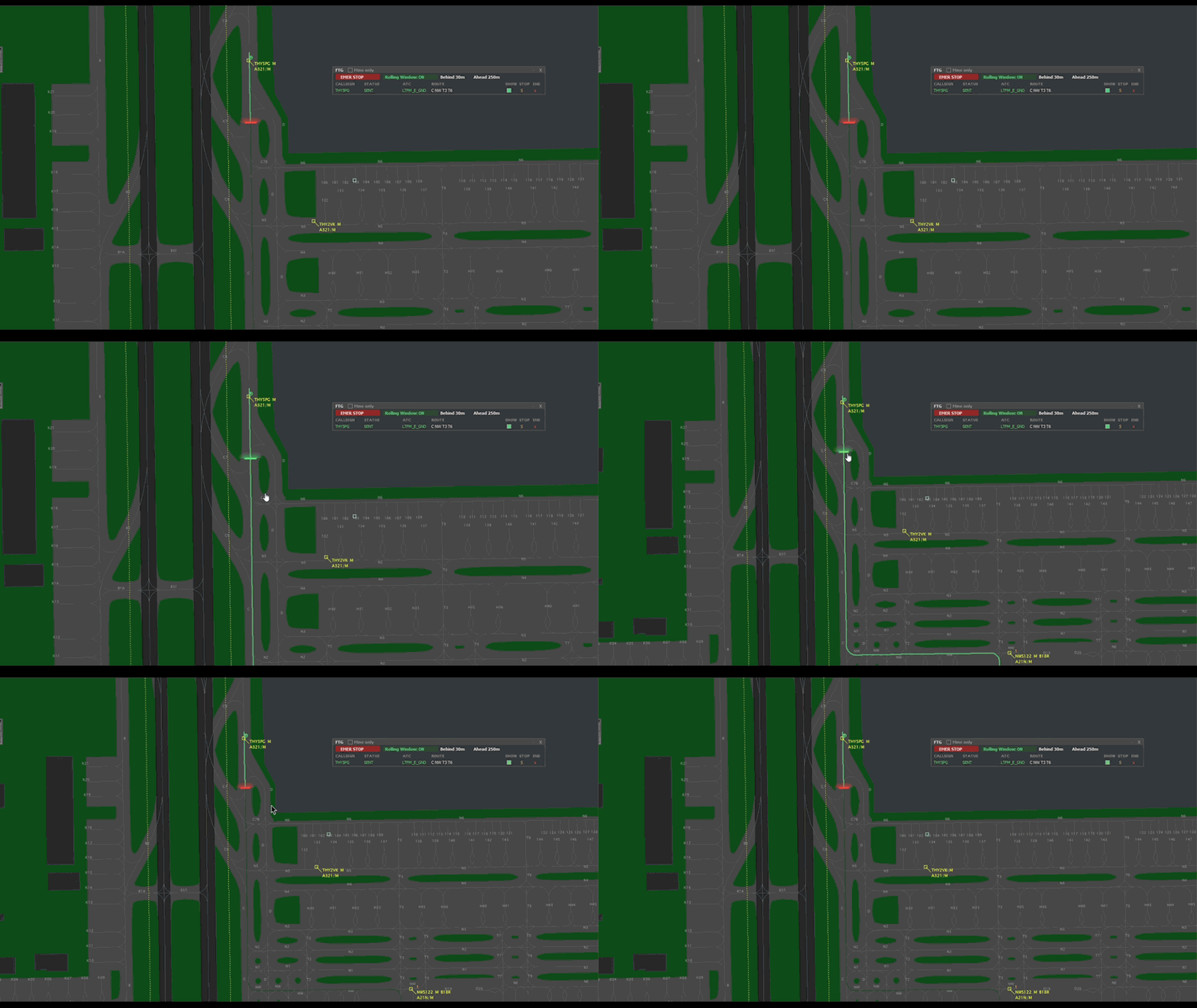
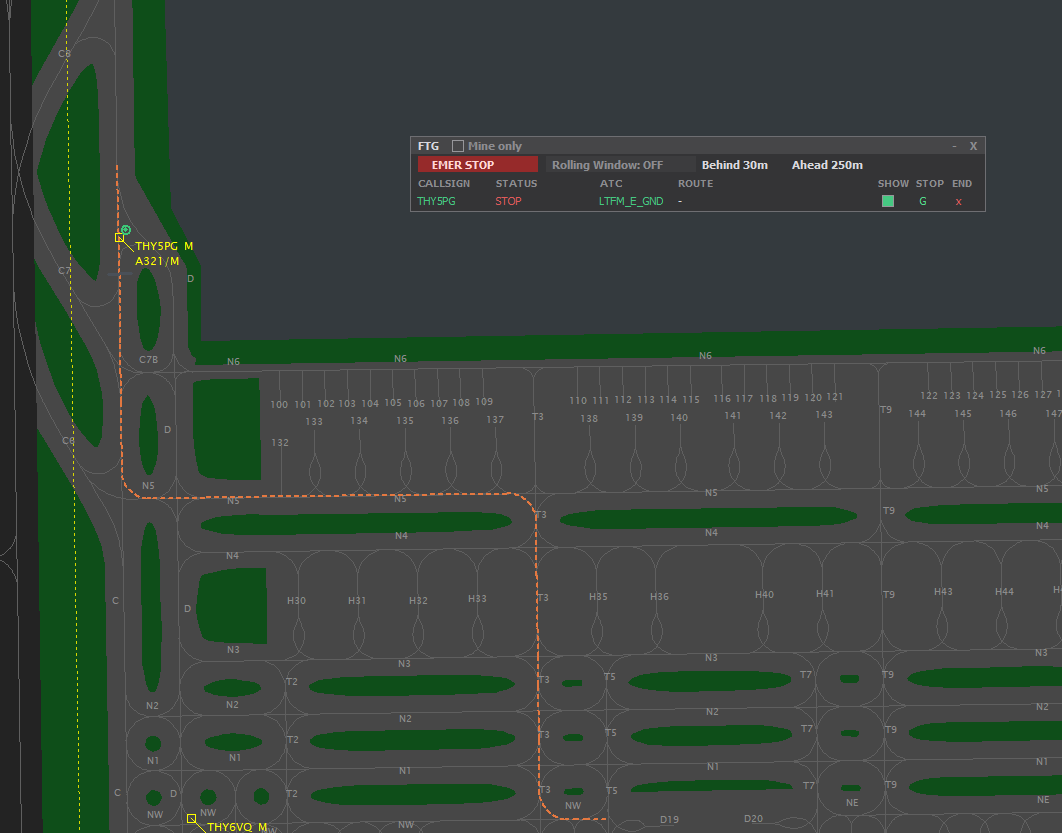
Open it from the XPGuard menu → FTG. It lists the FTG-capable ground traffic at your active airports. Your own aircraft show green.
Columns: CALLSIGN · STATUS · ATC · ROUTE · SHOW · STOP · END.
| Column | |
|---|---|
| CALLSIGN | Click to open the action menu. |
| STATUS | The FTG state (below). |
| ATC | Who owns it. Green = you. On other controllers' rows, STOP/GO and END are not drawn. |
| ROUTE | The nodes it runs through. |
| SHOW | Highlight that route on the radar (a tick). |
| STOP / GO | Darken one aircraft's greens (route kept) and resume. |
| END | End that session. |
The STATUS values:
| Status | Meaning |
|---|---|
Pending |
Your request is with the pilot. |
REJECTED |
They declined. |
Draft |
Pre-staged, not sent. |
Accepted |
Session up, no route yet. |
SENT |
The route is live. |
STOP |
Greens deliberately dark. GO resumes. |
DISC |
The pilot's client dropped. |
ADOPT? / HANDOFF? |
See Handoff & adopt. |
HO->ATC |
Your handoff offer is pending. |
| a callsign | Their session. - = capable, no session. |
Top-row controls:
- EMER STOP — darken every aircraft at once, at the airports you work. Sessions are kept; resume one at a time with GO.
- Rolling Window: ON / OFF — ON lights Behind…Ahead only, OFF the whole route. Either
way it still holds at a red bar. Click Behind (0–200 m) or Ahead (30–600 m) to
type a distance. All three apply live and save themselves — no
.xpg reload. Behind also sets how far the route stays drawn behind the aircraft. - Mine only (title bar) — filter to your traffic. Handy on a field worked by several FTG controllers.
Ownership visuals
When several controllers work FTG at the same field, the scope tells you at a glance which sessions are yours:
- Your own Show-ticked route draws bright — its lit legs pop and its unlit tail is a clear green.
- Another controller's Show-ticked route draws faded, and its badge ring is dashed.
- Ownership also shows on click. Another position's aircraft opens the action menu to a
Controlled by <callsign>line, and its panel row shows their callsign in the ATC column with STOP/GO and END withheld.
Handoff & adopt
- Handoff to… passes a session to another XPGuard controller at the same field. They get
HANDOFF?with Accept / Reject. Withdraw with Cancel handoff. - Hand your traffic over before you sign off. A clean exit —
.xpg releaseall, unloading the plugin, disconnecting — ends every session you own immediately, with nothing left to adopt. ADOPT?only follows a crash. Once your claims lapse (~90 s without a heartbeat) the session is adoptable for 120 s, by a controller holding a claim there or an admin. After that it dies.- End a session yourself with Cancel FTG, or the panel's END, when the aircraft reaches the runway or the stand.
See also
- The lights explained — what stop bars, lead-on lights, THL, REL and FTG mean.
- Contributing — map an airport — including the taxi-network (FTG) editor.
- vatSys controllers · FAQ